

Sử dụng Docker cơ bản trên window server 2019
Không thể chạy Containers, nếu phiên bản của máy chủ windows và windows containers không giống nhau, vì vậy hãy chỉ định một phiên bản cụ thể. Tham khảo các
Không thể chạy Containers, nếu phiên bản của máy chủ windows và windows containers không giống nhau, vì vậy hãy chỉ định một phiên bản cụ thể. Tham khảo các
Docker là nền tảng phần mềm cho phép bạn dựng, kiểm thử và triển khai ứng dụng một cách nhanh chóng. Docker đóng gói phần mềm vào các đơn vị

Tạo máy ảo trên powershell Windows PowerShell Copyright (C) Microsoft Corporation. All rights reserved. # confirm network adapter names PS C:UsersAdministrator> Get-NetAdapter Name InterfaceDescription ifIndex Status MacAddress LinkSpeed —- ——————–
Tạo máy ảo bằng cách cài đặt Windows server 2019. Trên Powershell chạy với quyền quản trị là Admin Wie Trustly laut CasinosSofort das Online-Casino-Banking verändert hat Die Art und
Cài đặt trên Powershell Windows PowerShell Copyright (C) Microsoft Corporation. All rights reserved. # install Hyper-V with admin tools PS C:UsersAdministrator> Install-WindowsFeature Hyper-V -IncludeManagementTools Success Restart Needed Exit Code Feature

Cài đặt trên Powershell Windows PowerShell Copyright (C) Microsoft Corporation. All rights reserved. # install NFS Client PS C:UsersAdministrator> Install-WindowsFeature NFS-Client Success Restart Needed Exit Code Feature Result ——- ————–
Cấu hình với Powershell Windows PowerShell Copyright (C) Microsoft Corporation. All rights reserved. # create NFS Shared Folder PS C:UsersAdministrator> mkdir C:NFSshare Directory: C: Mode LastWriteTime Length Name —- ————-
Cài đặt trên Powershell Windows PowerShell Copyright (C) Microsoft Corporation. All rights reserved. # install NFS Server with admin tools PS C:UsersAdministrator> Install-WindowsFeature FS-NFS-Service -IncludeManagementTools Success Restart Needed Exit Code
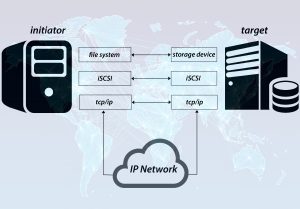
Cấu hình với Powershell trên Powershell chạy với quyền admin và cấu hình iSCSI Initiator như sau. Windows PowerShell Copyright (C) Microsoft Corporation. All rights reserved. # start iSCSI Initiator